Why a Strong WiFi Signal Throughout Your Home Matters
If you need to extend home wifi range, you're not alone. Dead zones, weak signals, and buffering videos are common frustrations for homeowners and businesses across Long Island.
Quick Answer: Top Methods to Extend Home WiFi Range
- Reposition your router- Move it to a central, liftd location (free)
- WiFi Range Extender- Budget-friendly signal booster ($60-$120)
- Mesh WiFi System- Multiple nodes create seamless coverage ($100-$600)
- Powerline Adapters- Use electrical wiring to extend signal ($50-$120)
- Wireless Access Point- Professional wired solution for maximum performance ($100-$300)
Fortunately, you have multiple solutions, from free router adjustments to professional installations that eliminate dead zones permanently.
With more wireless devices like smartphones, smart home systems, and security cameras, consistent WiFi coverage is essential. Even the best router can struggle with thick walls, multiple floors, and other obstructions.
This guide will help you diagnose your WiFi issues, explore free optimization techniques, and understand the available hardware solutions. You'll learn how to choose the right option for your needs and budget.
First, Diagnose Your WiFi Problem
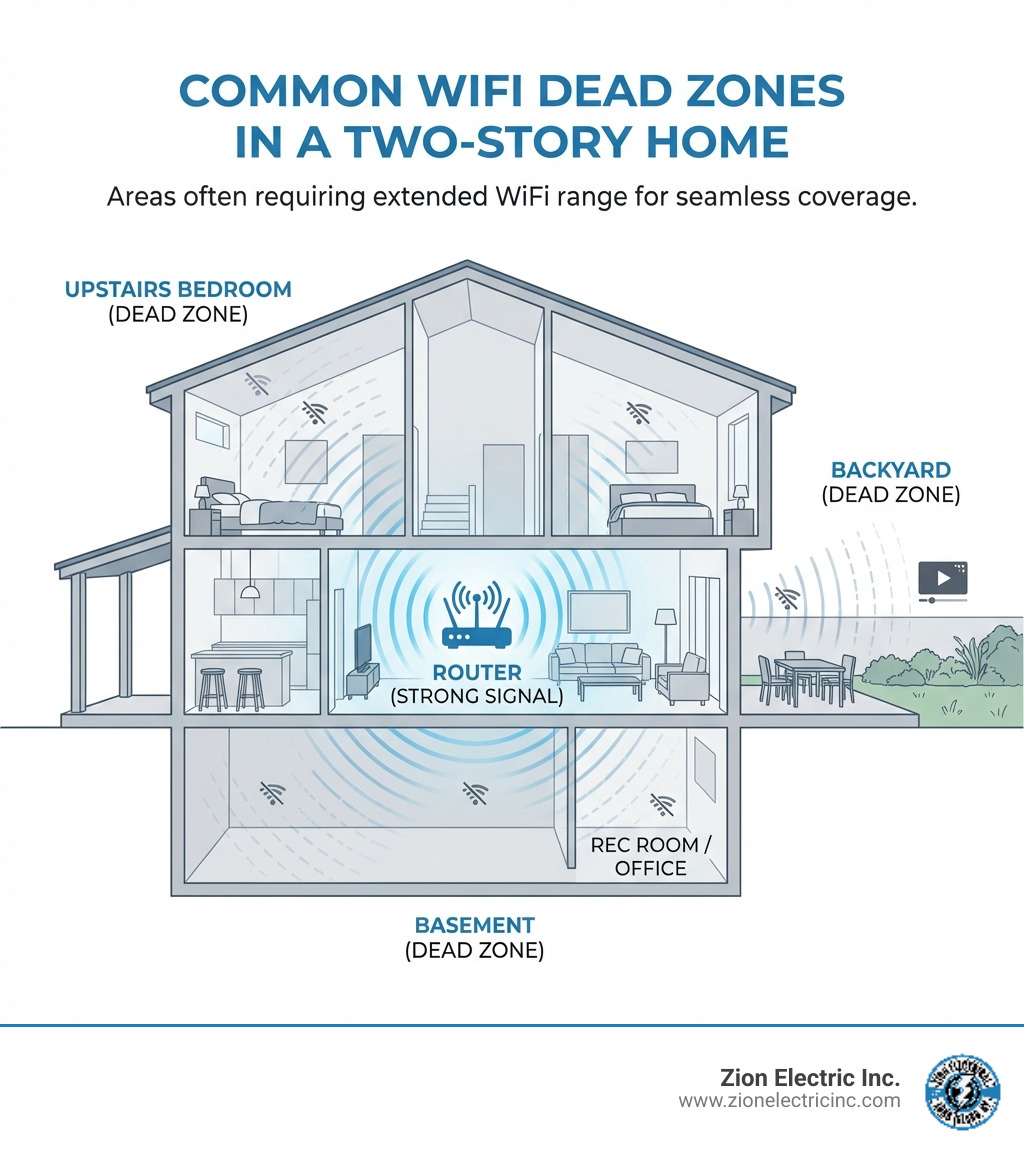
Before choosing a solution, you need to understand what's causing your WiFi issues. A weak signal can result from router placement, physical obstructions, and other factors. Pinpointing the problem is the first step to effectively extend home wifi range.
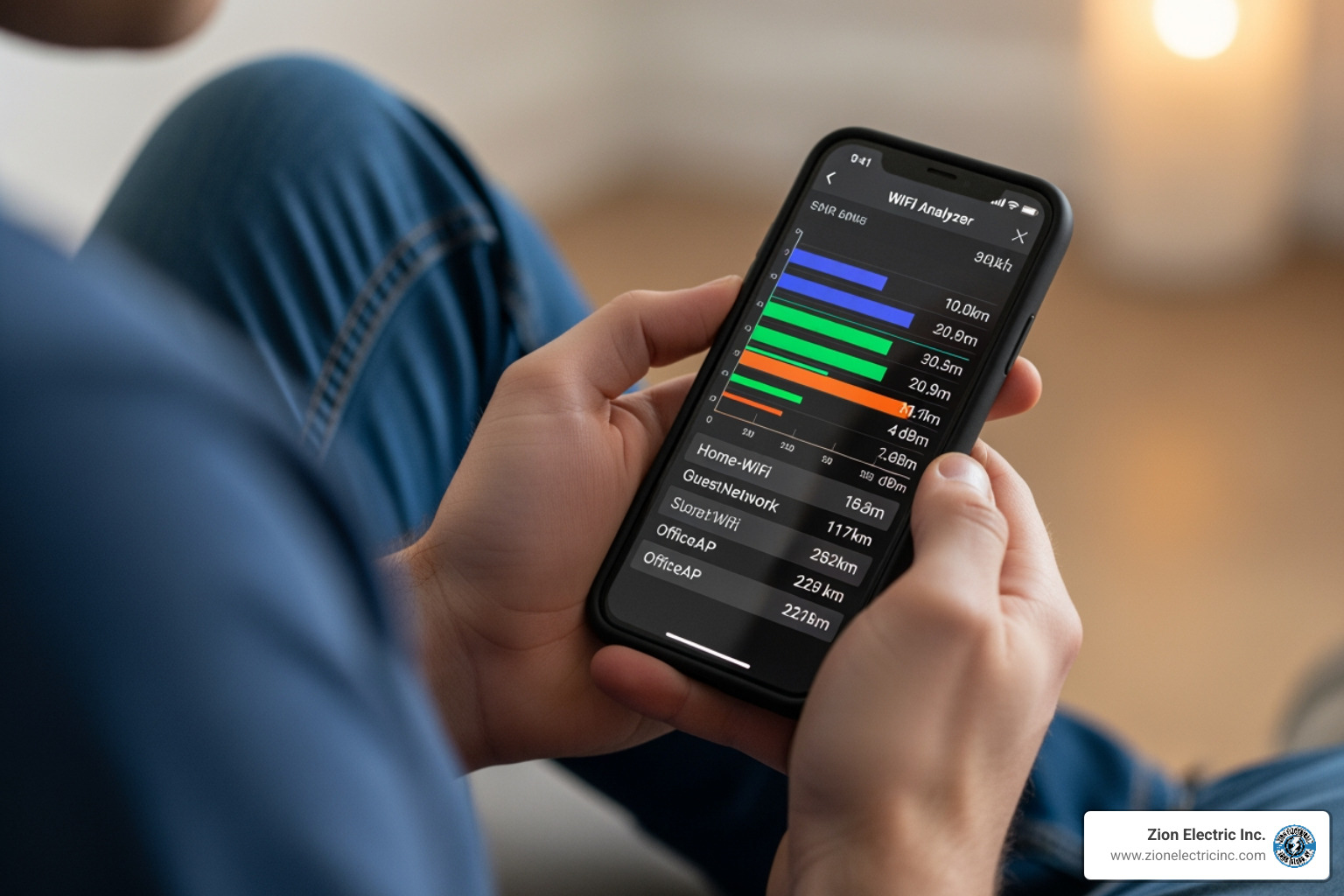
Slow internet makes streaming, gaming, and even checking emails frustrating. Limited WiFi range creates dead spots, regardless of your internet plan. First, confirm if the issue is slow speed, dropped connections, or no signal at all.
How to Test Your Current WiFi Signal Strength
To find the best way to extend home wifi range, you must first identify your dead zones and measure signal strength.
- Run Speed Tests: Use a tool like Speedtest by Ookla to record speeds in various rooms. This helps find areas where speeds drop significantly.
- Use WiFi Analyzer Apps: Free smartphone apps (like WiFi Analyzer for Android or NetSpot for iOS/Android) can map your signal strength. These apps measure the signal in decibel-milliwatts (dBm); a signal weaker than -70 dBm is considered poor. Walk through your home and note where the signal drops.
- Check Router Interface: Your router's admin page or app may show connected devices and their signal strength.
- Identify Obstructions: As you test, look for signal blockers. Common building materials like drywall weaken signals, while concrete and brick absorb them. Large appliances like refrigerators and microwaves can also cause interference.
Documenting your findings will help pinpoint problem areas. Restarting your modem and router before testing can also rule out temporary glitches.
Simple, No-Cost Ways to Boost Your Signal
Before buying new hardware, try these free adjustments to optimize your existing setup and extend home wifi range.
Optimize Your Router's Location and Settings
Your router's placement is crucial, as signals are degraded by obstructions.
-
Reposition Your Router:
- Central Location: Place your router near the center of your home for even signal distribution.
- Liftd Position: WiFi signals travel downwards, so placing your router on a high shelf or mounting it on a wall improves coverage.
- Avoid Obstructions: Keep the router away from thick walls, metal objects, and appliances like microwaves that cause interference. Don't hide it in a cabinet.
- Adjust Antennas: If your router has external antennas, position them vertically or in a V-shape, as the signal often beams out perpendicular to the antenna.
-
Update Router Firmware: Manufacturers release firmware updates to improve performance and security. Check your router's manual or the manufacturer's website for instructions. This is a crucial, free step.
-
Switch Wi-Fi Frequencies (Bands): Most modern routers are dual-band (2.4 GHz and 5 GHz).
- 2.4 GHz: Offers longer range and better penetration through walls but is slower and more prone to interference. Best for devices far from the router.
- 5 GHz: Provides faster speeds with less interference but has a shorter range. Ideal for nearby devices needing high bandwidth (e.g., streaming, gaming).
- 6 GHz: Found in newer Wi-Fi 6E/7 routers, this band is the fastest with the least congestion but has the shortest range.
- You can often create separate network names (SSIDs) for each band in your router settings to manually select which one your devices use. For more details, see this guide to WiFi standards.
-
Change the Wi-Fi Channel: WiFi channels can get congested by neighbors' networks.
- Use a WiFi analyzer app to find the least crowded channels.
- For 2.4 GHz, non-overlapping channels 1, 6, and 11 are best.
- For 5 GHz and 6 GHz, there are many more non-overlapping channels to choose from.
- You can change the channel in your router's administration settings.
These simple adjustments can significantly improve your WiFi coverage without any cost.
Hardware Solutions to extend home wifi range
If optimizing your router isn't enough, it's time for a hardware solution to extend home wifi range. Each device has unique benefits and drawbacks.
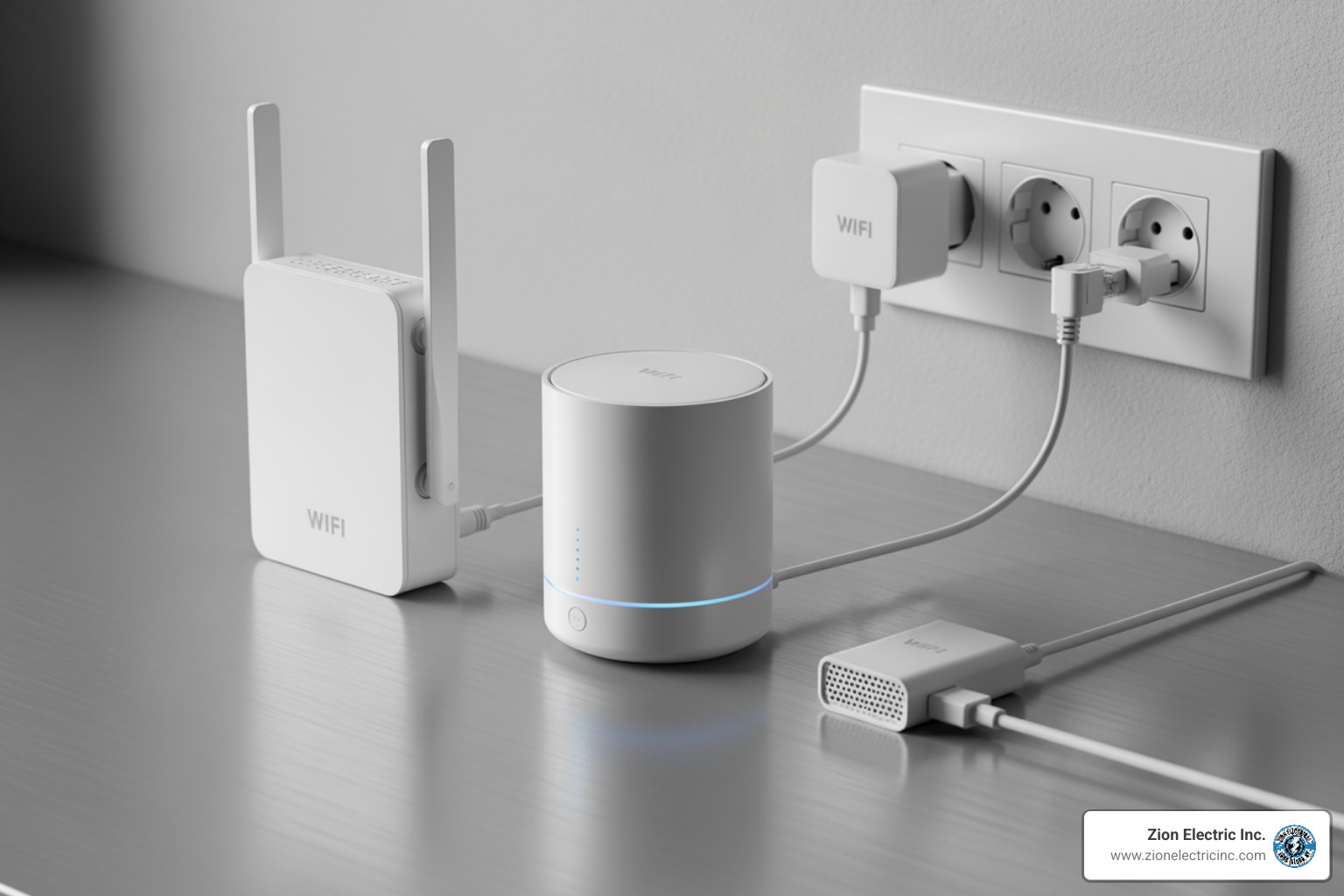
When to use a WiFi extender to extend home wifi range
A WiFi range extender (also called a repeater or booster) captures your existing WiFi signal and rebroadcasts it to expand its reach.
Pros of WiFi Range Extenders:
- Cost-Effective: The most affordable hardware solution, typically $60–$120.
- Easy Setup: Most offer simple plug-and-play setup via a WPS button or web interface.
Cons and Limitations of WiFi Range Extenders:
- Speed Reduction: Extenders can cut your WiFi speed by up to 50% because they use the same band to communicate with the router and your devices, halving the available bandwidth.
- Separate Network Names (SSID): Many create a separate network (e.g., "MyHomeWiFi_EXT"), forcing you to manually switch networks as you move, which disrupts connectivity.
- Placement is Key: An extender must be placed where it still receives a strong signal from the main router to be effective. If the signal it receives is weak, it will only rebroadcast a weak signal.
- Increased Latency: The extra "hop" the signal takes can increase lag, affecting online gaming and video calls.
When to Use an Extender: An extender is a good budget choice for covering a small, specific dead zone (like one room) where maximum speed isn't critical.
How Powerline Adapters Use Your Home's Wiring
Powerline adapters extend home wifi range by using your home's electrical wiring. One adapter connects to your router and a nearby outlet, while a second adapter plugs into an outlet in another room, turning it into a network port.
Pros of Powerline Adapters:
- Stable Connection: Using wired electrical lines provides a more stable connection than wireless extenders, bypassing thick walls.
- Cost-Effective: Typically cost between $50–$120.
- Easy Setup: Most are plug-and-play.
Cons and Limitations of Powerline Adapters:
- Wiring Dependent: Performance relies heavily on the quality of your home's electrical wiring. Older wiring can reduce speeds.
- Interference: Large appliances on the same circuit can cause interference. Plug adapters directly into wall outlets, not power strips.
- Single Circuit Requirement: Both adapters work best on the same electrical circuit, which can be a limitation in larger homes.
- May Not Include WiFi: Basic models only provide an Ethernet port; ensure you buy a model with built-in WiFi if needed.
When to Use Powerline Adapters: They are great for rooms far from the router where running Ethernet isn't feasible, especially for home offices or media rooms needing a stable connection. If you have concerns about your home's electrical system, Zion Electric Inc. can help. Learn more on our General Electrical Services page.
How a mesh system can extend home wifi range seamlessly
A WiFi mesh system is the gold standard for whole-home coverage. It uses a main router and several satellite "nodes" to create a single, unified WiFi network.
How They Work: The main router connects to your modem, and you place satellite nodes around your home. The nodes communicate with each other to form a seamless network. Your devices automatically connect to the strongest signal as you move, so you never have to switch networks manually.
Pros of Mesh Systems:
- Seamless Roaming: Enjoy one network name (SSID) and uninterrupted connectivity as your devices automatically switch to the strongest node.
- Whole-Home Coverage: Designed to eliminate dead zones in large or multi-story homes.
- Dedicated Backhaul: Many systems use a dedicated wireless band for node-to-node communication, preventing the speed loss common with extenders.
- Easy Management: Most come with user-friendly mobile apps for simple setup and control.
- Scalable: You can easily add more nodes to expand coverage.
Cons and Drawbacks of Mesh Systems:
- Higher Cost: More expensive than extenders, with systems costing $100–$600.
- More Equipment: Requires multiple devices plugged in around your home.
When to Use a Mesh System: Ideal for larger homes, multi-story properties, or anyone needing consistent, high-speed WiFi everywhere for streaming, gaming, and many connected devices.
Installing an Additional Access Point
A wireless access point (WAP) turns a wired Ethernet connection into a WiFi hotspot, creating a wireless local area network (WLAN) from your existing wired network.
How They Work: A WAP connects directly to your main router via an Ethernet cable. This hardwired connection gives it a full-speed internet feed, which it then broadcasts as a powerful WiFi signal.
Pros of Access Points:
- Maximum Performance: The wired connection (backhaul) means no speed loss, unlike wireless extenders. This provides the fastest and most stable WiFi extension.
- Reliability: A hardwired connection is extremely reliable, making it ideal for demanding applications.
- Flexible Configuration: Can be set up as a separate network or integrated with your main network for seamless roaming (though this may require more advanced setup).
Cons and Drawbacks of Access Points:
- Requires Ethernet Cabling: The biggest challenge is running an Ethernet cable from your router to the WAP's location, which can be complex and may require professional installation.
- Higher Overall Cost: The WAP itself costs $100–$300, but professional cabling adds to the expense.
- More Complex Setup: Configuration can be more involved than plug-and-play devices.
When to Use an Access Point: A WAP is the best solution for guaranteed high performance and reliability, especially in home offices, detached garages, or for businesses. It's ideal when you can run Ethernet cabling. For professional network cabling on Long Island, the experts at Zion Electric Inc. can handle all your Specialty Services needs.
Choosing the Right Solution for Your Home
Deciding how to extend home wifi range depends on your home, budget, and internet habits. Consider these factors to make an informed decision.
Factors to Consider for Your Property
-
Home Size and Layout:
- Small to Medium (up to 1,500 sq ft): Router optimization or a single WiFi extender may be enough.
- Medium to Large (1,500 - 3,000 sq ft): A mesh WiFi system is often best. Powerline adapters can work for specific rooms.
- Very Large or Multi-Story (3,000+ sq ft): A multi-node mesh system or wired access points are necessary.
- Irregular Layouts: Mesh systems or wired access points are more effective than extenders for complex floor plans.
-
Construction Materials: Brick, concrete, and metal degrade WiFi signals.
- For these homes, powerline adapters (with good wiring) or wired access points are more effective as they bypass wireless obstructions.
-
Budget:
- Free: Router repositioning and settings adjustments.
- Low ($60-$120): WiFi range extender, powerline adapters.
- Mid ($100-$300): Entry-level mesh systems, wireless access point (device only).
- High ($300-$600+): Advanced mesh systems, professionally installed access points.
-
Performance Needs:
- Light Use (browsing, email): An extender is often acceptable.
- Moderate Use (HD streaming): A mesh system or powerline adapter with WiFi is better.
- Heavy Use (4K streaming, gaming, many devices): A mesh system with dedicated backhaul or a wired access point is essential.
- Note: If your internet plan is under 100 Mbps, extenders will cause noticeable speed drops. A plan of at least 200 Mbps is recommended for extension products.
-
Technical Skill:
- Beginner: Router optimization, plug-and-play extenders.
- Intermediate: Mesh systems (app-guided setup), powerline adapters.
- Advanced: Configuring access points.
-
Outdoor Coverage: For WiFi in a backyard or detached garage, consider:
- Outdoor-rated WiFi extenders or mesh nodes.
- Wired access points, which are best for detached structures. Our team at Zion Electric Inc. can assist with exterior wiring.
Evaluating these factors will help you find the most cost-effective solution to extend home wifi range.
Frequently Asked Questions about Extending WiFi
Here are answers to common questions about improving your WiFi.
How do I set up a WiFi range extender or mesh system?
Setup for modern devices is usually straightforward:
-
WiFi Range Extenders:
- Plug the extender in halfway between your router and the dead zone.
- Use the WPS (Wi-Fi Protected Setup) button on both your router and extender for a quick connection.
- Alternatively, use the manufacturer's mobile app or web browser to follow on-screen setup instructions. You'll connect the extender to your main WiFi network and give it a name.
-
Mesh Systems:
- Connect the main mesh router to your modem.
- Download the system's mobile app, which will guide you through creating your new network.
- Place the satellite nodes around your home as instructed by the app for optimal coverage. The nodes will connect automatically.
Always refer to your device's manual for specific instructions.
What is the difference between a WiFi booster, extender, and repeater?
These terms are often used interchangeably.
- Booster: A general marketing term for any device that improves your WiFi signal.
- Repeater: An older term for a device that captures and re-broadcasts a WiFi signal, often cutting bandwidth in half.
- Extender: A more modern repeater, which may use advanced technology to reduce speed loss but often still creates a separate network.
For most users, these all refer to a device that wirelessly extends your WiFi coverage.
Will extending my WiFi slow down my internet speed?
It depends on the method:
- WiFi Range Extenders/Repeaters: Yes, they typically cut your available bandwidth by up to 50% because they use the same radio to both receive and transmit the signal.
- Powerline Adapters: Speed is generally stable but depends on the quality of your home's electrical wiring.
- Mesh WiFi Systems: These are designed to minimize speed loss. Many use a dedicated "backhaul" band for communication between nodes, preserving bandwidth for your devices.
- Wireless Access Points (WAPs): No. Because they use a wired Ethernet connection to the router, they provide a full-speed signal with virtually no performance reduction.
Choosing the right solution, like a mesh system or a wired access point, is key to maintaining high speeds across your home.
Get Complete and Reliable WiFi Coverage
A strong, reliable WiFi signal is a necessity for modern homes and businesses on Long Island. Our daily lives, from remote work to smart home automation, depend on seamless connectivity.
We understand the frustration of dead zones and slow internet. By choosing the right solution—from a simple router adjustment to a robust mesh system or wired access point—you can enjoy consistent, high-speed internet in every corner of your property.
For complex setups requiring new wiring, like installing a dedicated access point for maximum performance, our certified electricians at Zion Electric Inc. provide clean and reliable installations. We ensure your network infrastructure is solid and ready for today's demands across Long Island.
To learn more, Read our Blog for home improvement tips. Ready for flawless WiFi coverage? Contact us for certified installations and let us help you achieve the connected home you deserve.